Speed Issues
How to troubleshoot slow connection issues on Windows ?
- 1
Test your internet speed without VPN
Disconnect BorderlessVPN and run your normal internet speed test. This gives you a baseline for comparison.
- 2
Connect to BorderlessVPN and test again
Reconnect to BorderlessVPN and run the same speed test. Compare the results with your normal connection.
- 3
Try another VPN server
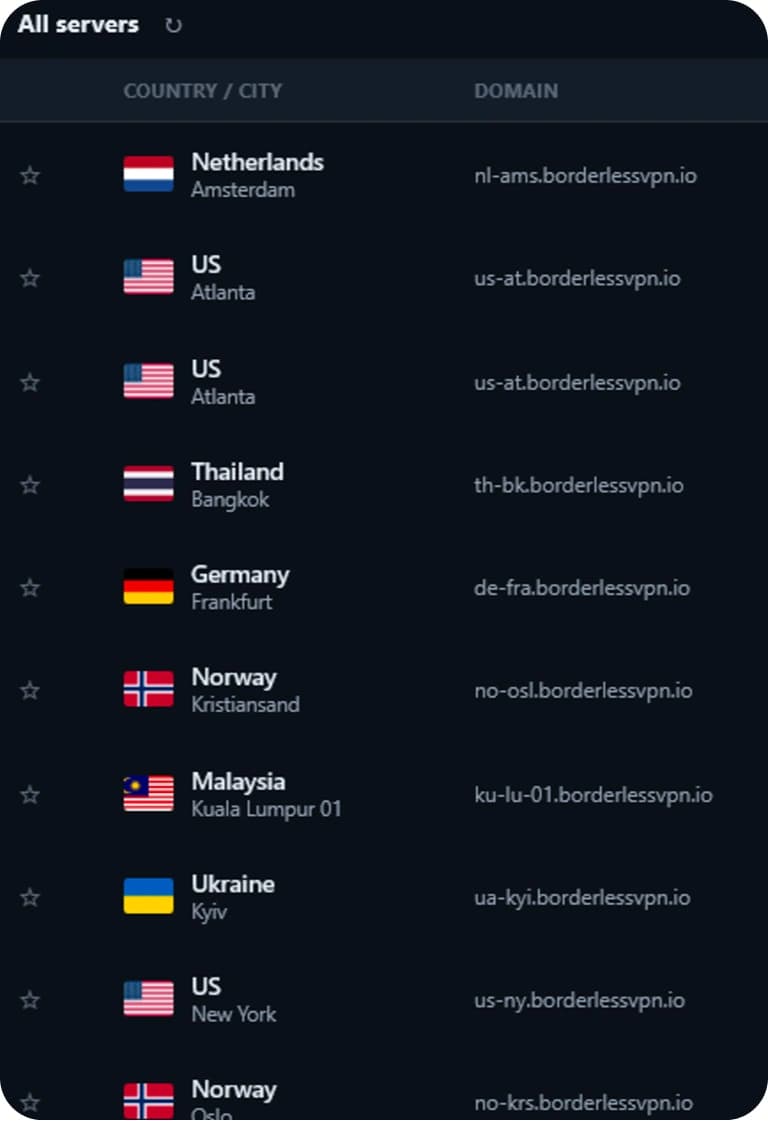
Connect to another VPN server. Some servers may experience higher traffic than others.
- 4
Choose a closer server
If possible, select a VPN server geographically closer to you. A shorter network route may provide better performance.
- 5
Close bandwidth-heavy applications
Close downloads, streaming services, cloud synchronization, or other applications that may consume significant bandwidth.
- 6
Try another network
Test BorderlessVPN using another Wi-Fi or mobile hotspot connection.
- 7
Restart BorderlessVPN
Restart the app and reconnect.
- 8
Restart your computer
Restart Windows and try connecting again.
- 1
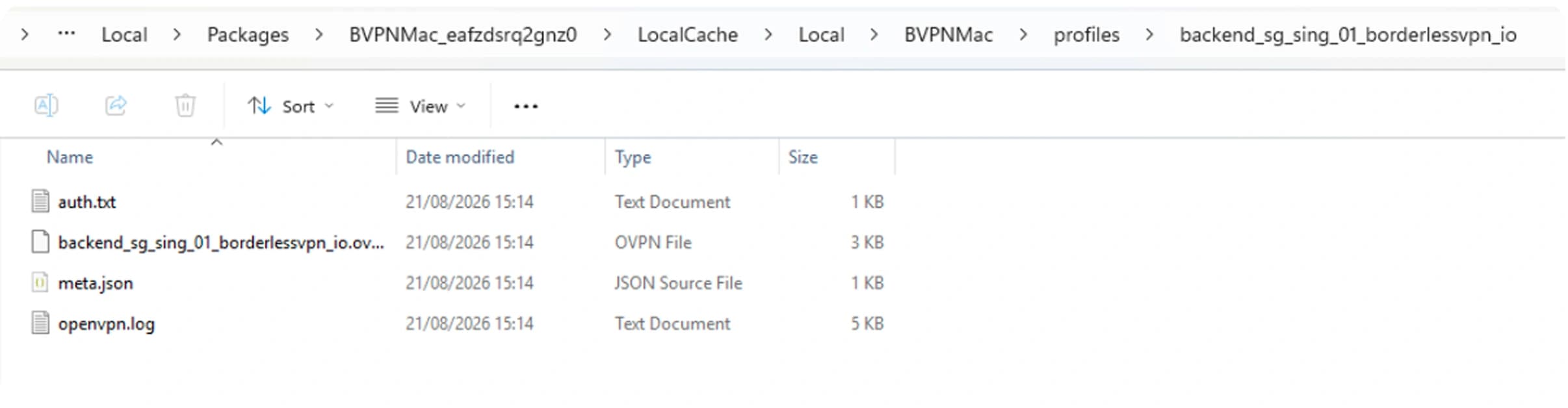
Open the log file in this directory
C:\Users\<user>\AppData\Local\Packages\BVPNMac_<hash>\LocalCache\Local\BVPNMac\profiles\<profileId>\openvpn.log
- Note: if you cannot find AppData, go to menu View => Show => Hidden items.
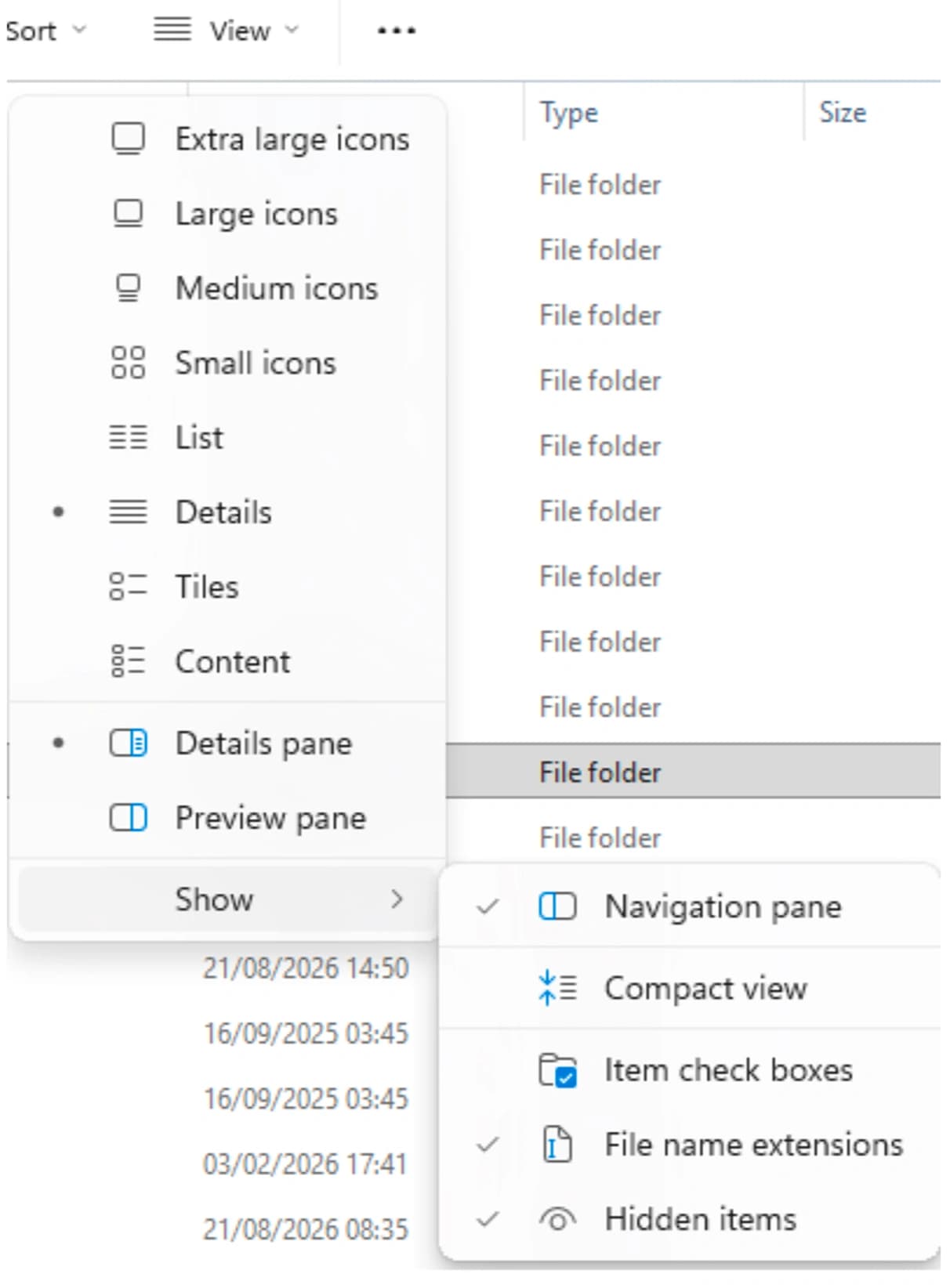
- Note: if you cannot find AppData, go to menu View => Show => Hidden items.
- 2
Check whether this message shows in the log
CreateFile failed on tap-windows6 device: ... The system cannot find the file specified. All tap-windows6 adapters on this system are currently in use or disabled. Exiting due to fatal error

- 3
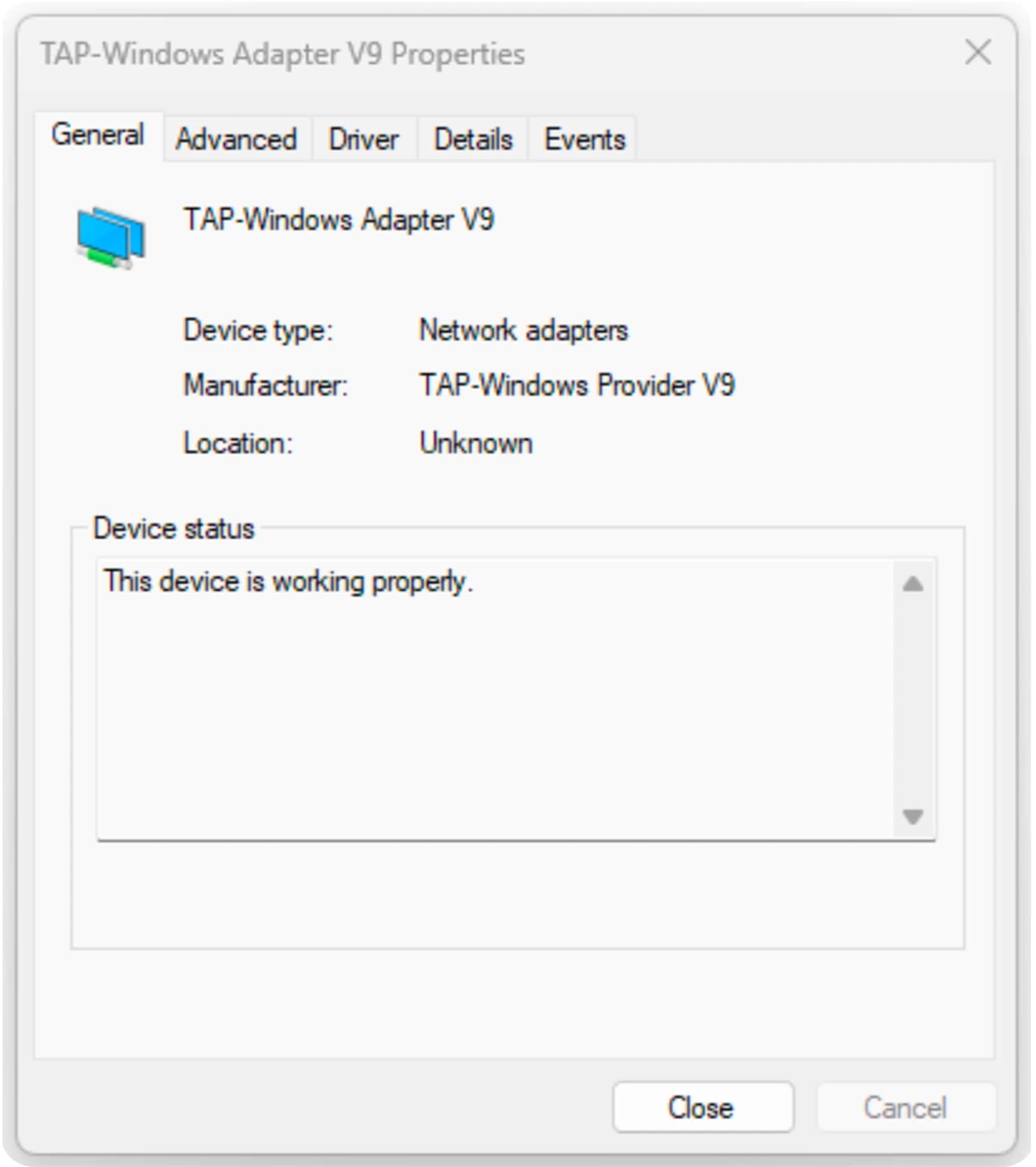
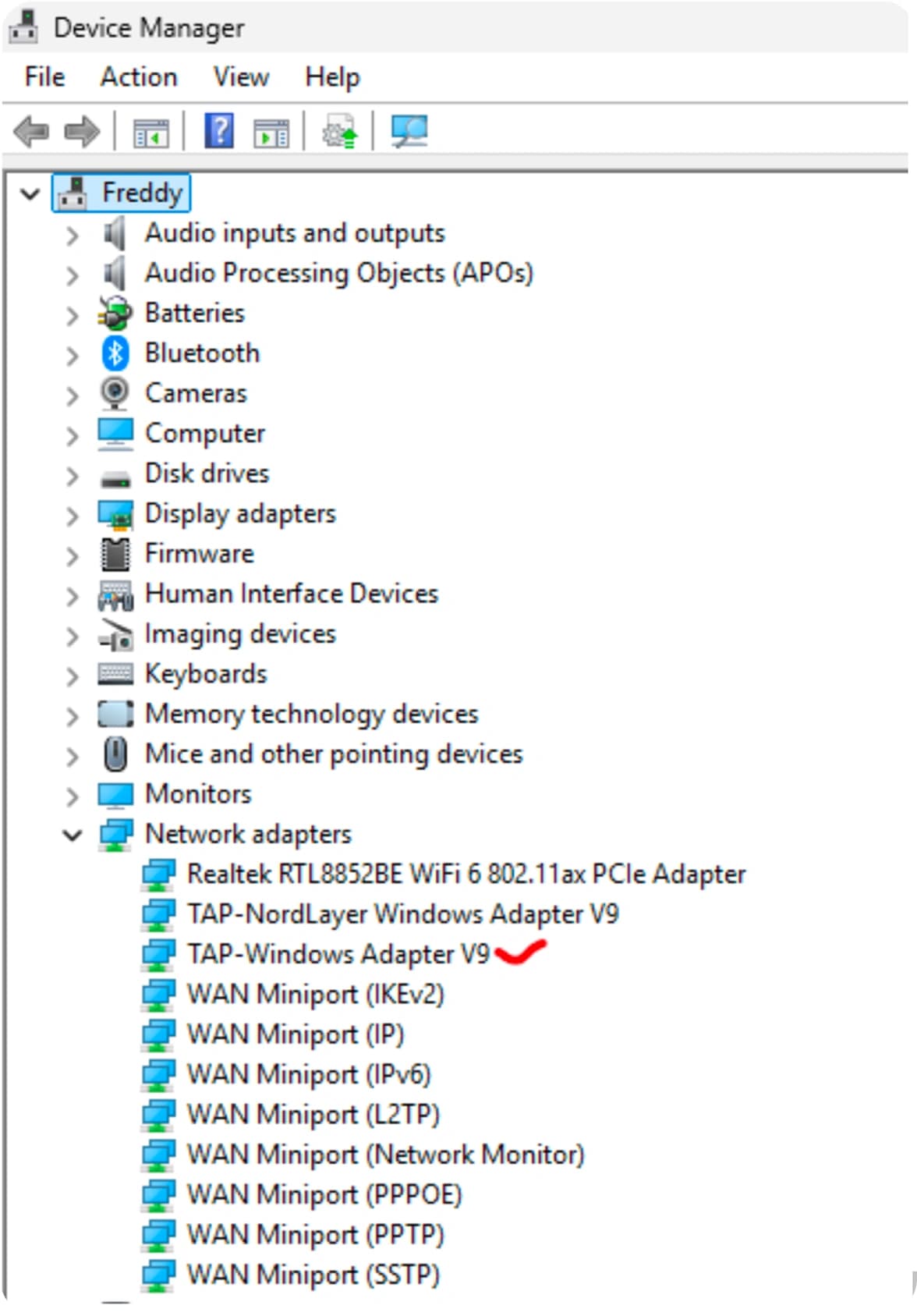
If you find the message above, go to Device Manager → Network adapters. Find TAP-Windows Adapter V9 and click to open.
- 4
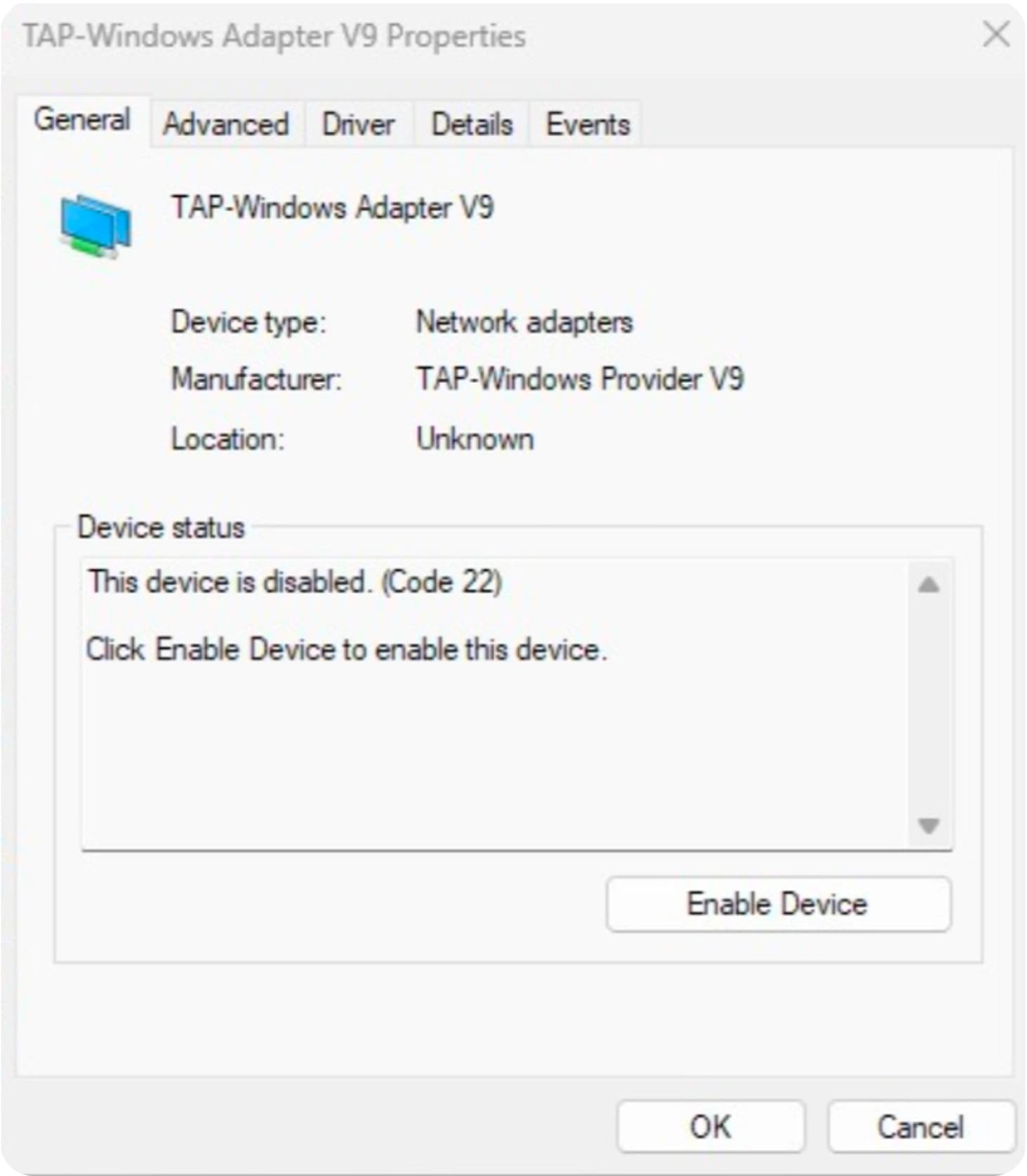
If the device status shows "This device is disabled", click the "Enable Device" button.
- 5
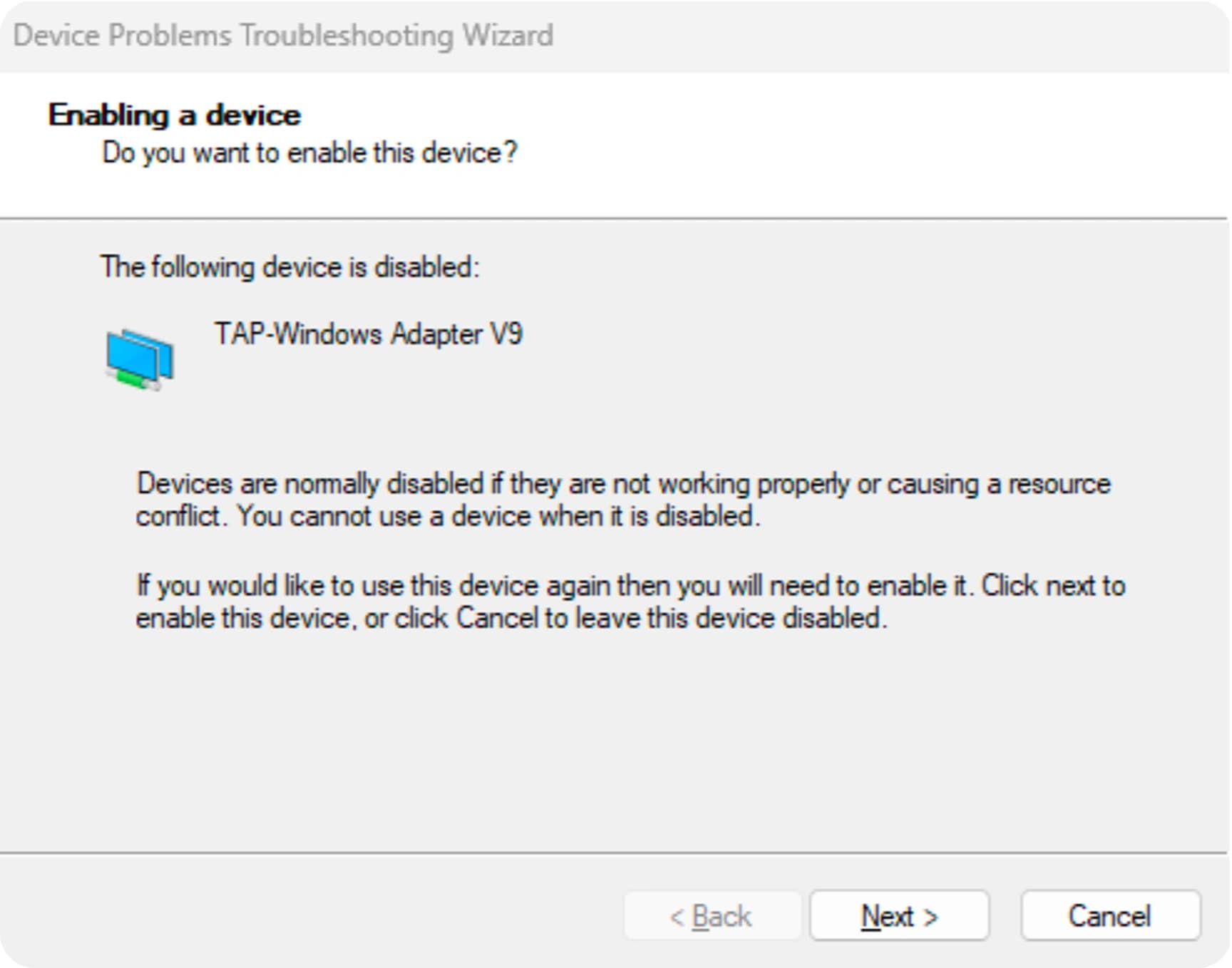
Proceed with enabling the device and click "Next" until it finishes.
- 6
The adapter is enabled successfully and you should be able to connect again.