Connection Issues
How to troubleshoot BorderlessVPN connection on Windows ?
- 1
Check your internet connection
Disconnect BorderlessVPN temporarily and open a website to make sure your internet connection is working normally. If you cannot access the internet without BorderlessVPN, resolve your internet connection before troubleshooting the VPN.
- 2
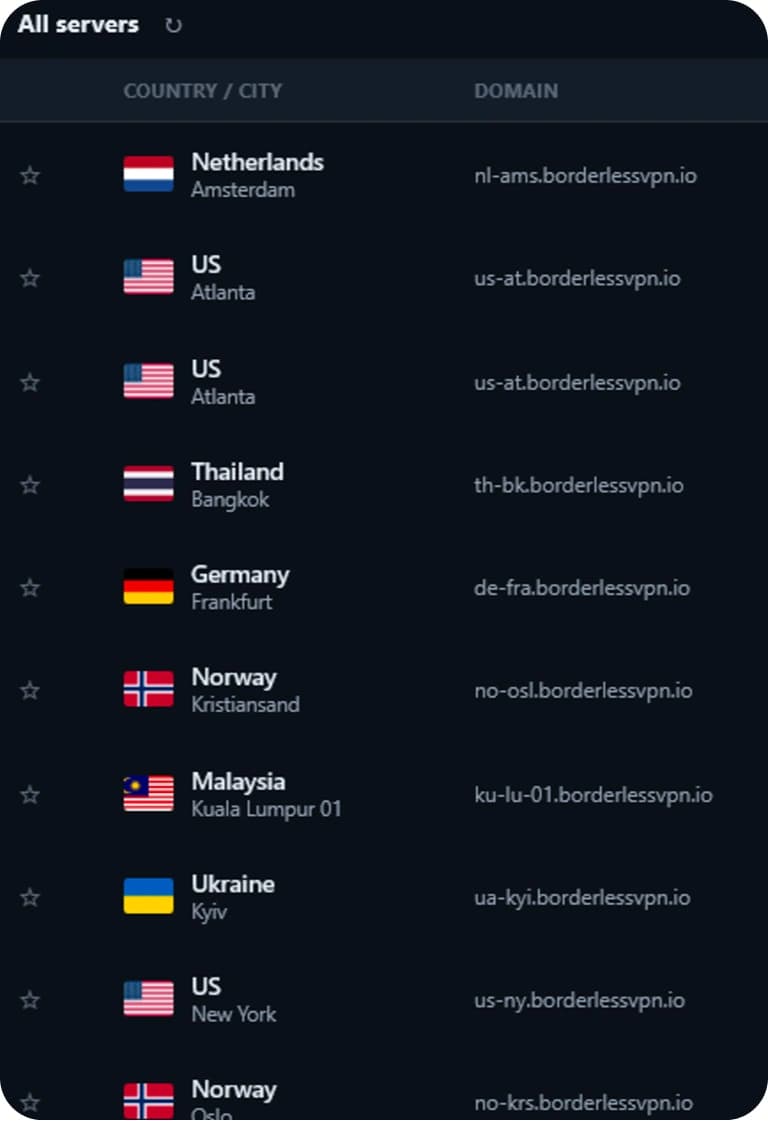
Try another VPN server
Open the BorderlessVPN server list and select another available server. If possible, choose a server closer to your current location, then try connecting again.
- 3
Restart BorderlessVPN
Disconnect from the VPN and close the BorderlessVPN application completely. Reopen the app and try connecting again.
- 4
Restart your Windows computer
Restart your Windows computer to refresh the network connection and BorderlessVPN services. Once your computer starts again, open BorderlessVPN and try connecting.
- 5
Try another network
Connect your computer to another Wi-Fi network, Ethernet connection, or mobile hotspot. This can help determine whether the problem is related to your current network.
- 6
Check your firewall or security software
Firewall, antivirus, or other network-security software may interfere with VPN connections. Make sure BorderlessVPN is allowed to communicate through your network.
- 7
Update BorderlessVPN
Make sure you are using the latest version of BorderlessVPN. Updating the app can resolve known connection or compatibility issues.
- 8
Reinstall BorderlessVPN
If the problem continues, uninstall BorderlessVPN and install the latest version from the official BorderlessVPN download page.
- 1
Check your internet connection
Disconnect BorderlessVPN temporarily and open a website to make sure your internet connection is working normally. If you cannot access the internet without BorderlessVPN, resolve your internet connection before troubleshooting the VPN.
- 2
Try another VPN server
Open the BorderlessVPN server list and select another available server. If possible, choose a server closer to your current location, then try connecting again.
- 3
Restart BorderlessVPN
Disconnect from the VPN and close the BorderlessVPN application completely. Reopen the app and try connecting again.
- 4
Restart your Windows computer
Restart your Windows computer to refresh the network connection and BorderlessVPN services. Once your computer starts again, open BorderlessVPN and try connecting.
- 5
Try another network
Connect your computer to another Wi-Fi network, Ethernet connection, or mobile hotspot. This can help determine whether the problem is related to your current network.
- 6
Check your firewall or security software
Firewall, antivirus, or other network-security software may interfere with VPN connections. Make sure BorderlessVPN is allowed to communicate through your network.
- 7
Update BorderlessVPN
Make sure you are using the latest version of BorderlessVPN. Updating the app can resolve known connection or compatibility issues.
- 8
Reinstall BorderlessVPN
If the problem continues, uninstall BorderlessVPN and install the latest version from the official BorderlessVPN download page.
- 1
Cancel the connection attempt
Stop the current connection attempt and wait a few seconds before trying again. This gives the app a chance to clear the previous connection request.
- 2
Try another VPN server
Open the server list and select another available server. A different server may resolve a temporary connection issue.
- 3
Restart BorderlessVPN
Close BorderlessVPN completely and open it again. Then select a server and try connecting.
- 4
Restart your computer
Restart Windows to refresh the network connection and VPN components.
- 5
Try another network
Connect to another Wi-Fi network or mobile hotspot to determine whether the problem is related to your current network.
- 6
Check security software
Firewall, antivirus, or other network-security software may interfere with VPN connections. Make sure BorderlessVPN is allowed to communicate through your network.
- 7
Update BorderlessVPN
Make sure you are using the latest version of BorderlessVPN. Updating the app can resolve known connection or compatibility issues.
- 8
Reinstall BorderlessVPN
If the problem continues, uninstall BorderlessVPN and install the latest version from the official BorderlessVPN download page.
- 1
Check your internet connection
Disconnect BorderlessVPN and confirm that your internet connection is stable. An unstable connection can cause the VPN connection to drop.
- 2
Try another VPN server
Select another BorderlessVPN server and reconnect. This helps determine whether the issue is specific to the server you were using.
- 3
Restart BorderlessVPN
Close BorderlessVPN completely and open it again. Then select a server and try connecting.
- 4
Restart your computer
Restart Windows to refresh the network connection and VPN components.
- 5
Try another network
Connect to another Wi-Fi network or mobile hotspot. If the VPN remains connected on another network, your original network may be causing the problem.
- 6
Check other VPN or security applications
Make sure another VPN, firewall, antivirus, or network-filtering application is not interfering with BorderlessVPN.
- 7
Update BorderlessVPN
Make sure you are using the latest version of BorderlessVPN. Updating the app can resolve known connection or compatibility issues.
- 8
Reinstall BorderlessVPN
If the problem continues, uninstall BorderlessVPN and install the latest version from the official BorderlessVPN download page.