How to set up BorderlessVPN on iOS
- 1
Download BorderlessVPN
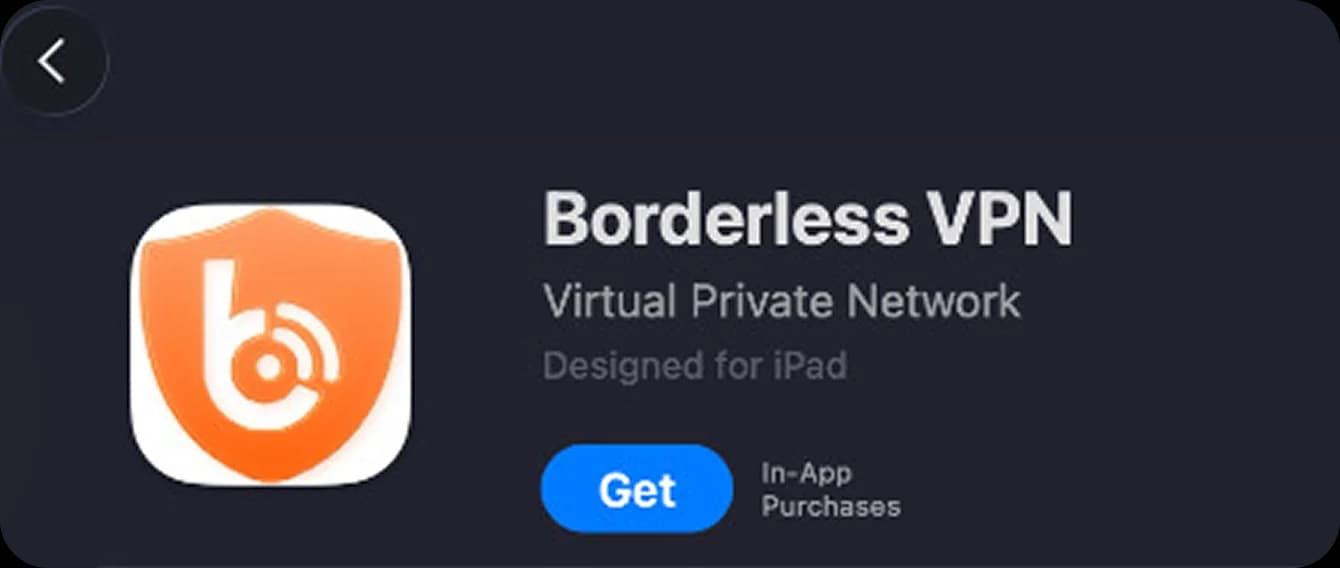
Open the App Store on your iPhone or iPad and search for BorderlessVPN.
- 2
Open BorderlessVPN
Once the installation is complete, tap Open to launch BorderlessVPN. You can also find the app on your Home Screen.
- 3
Sign In to Your Account
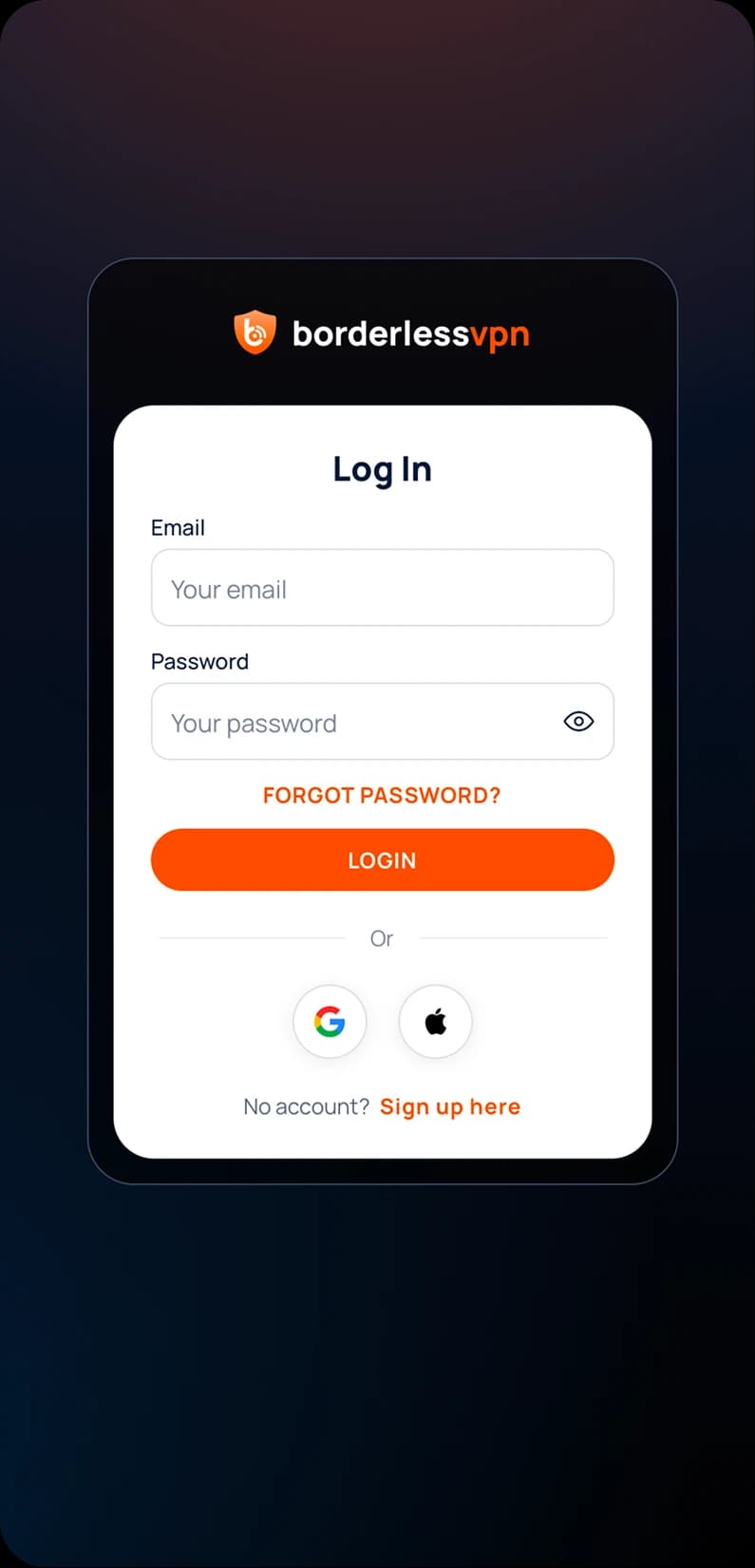
Choose your preferred sign-in method:
- Continue with Google
- Continue with Apple
- Log In with Username & Password
Follow the on-screen instructions to complete the sign-in process.
- 4
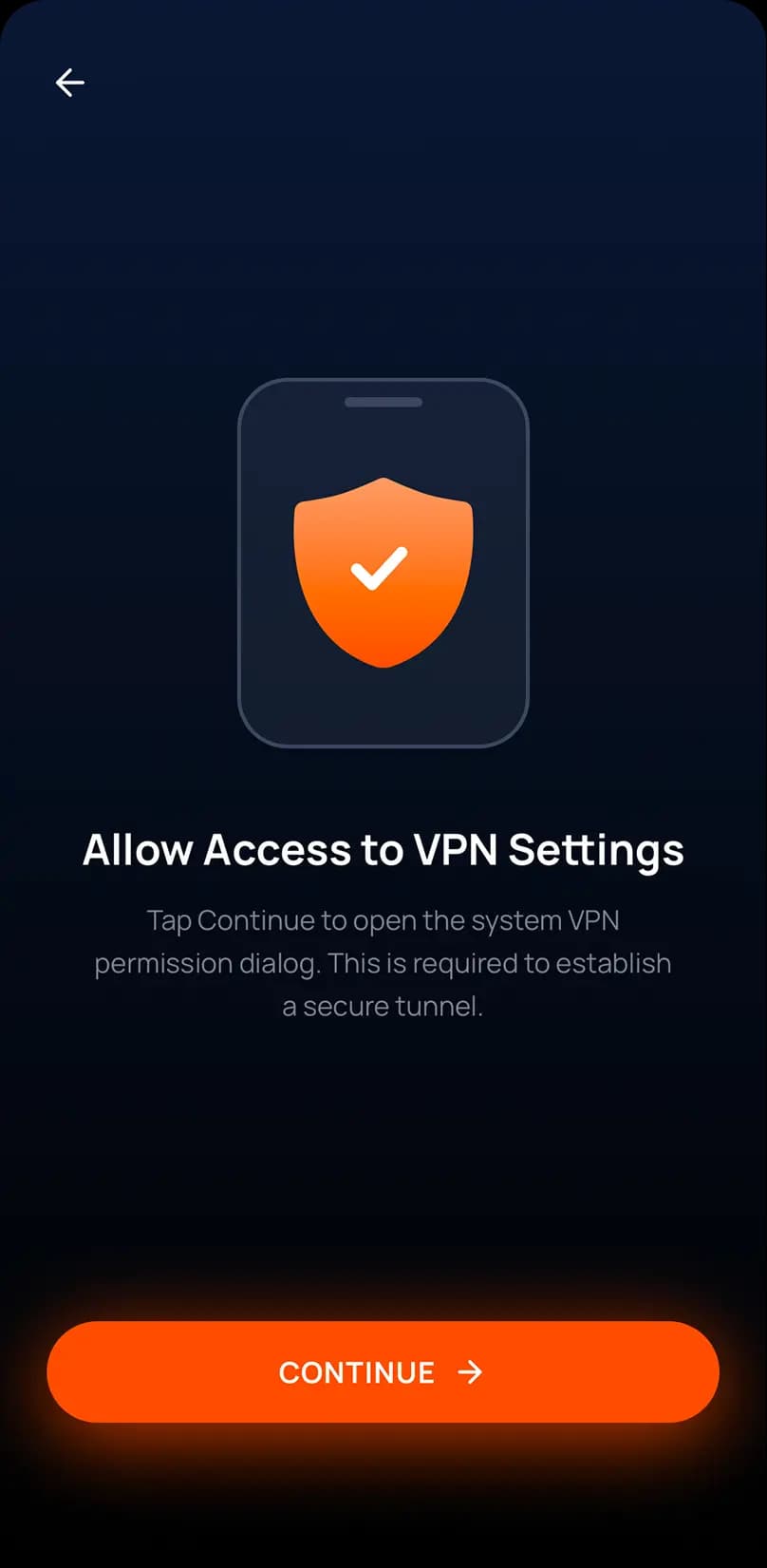
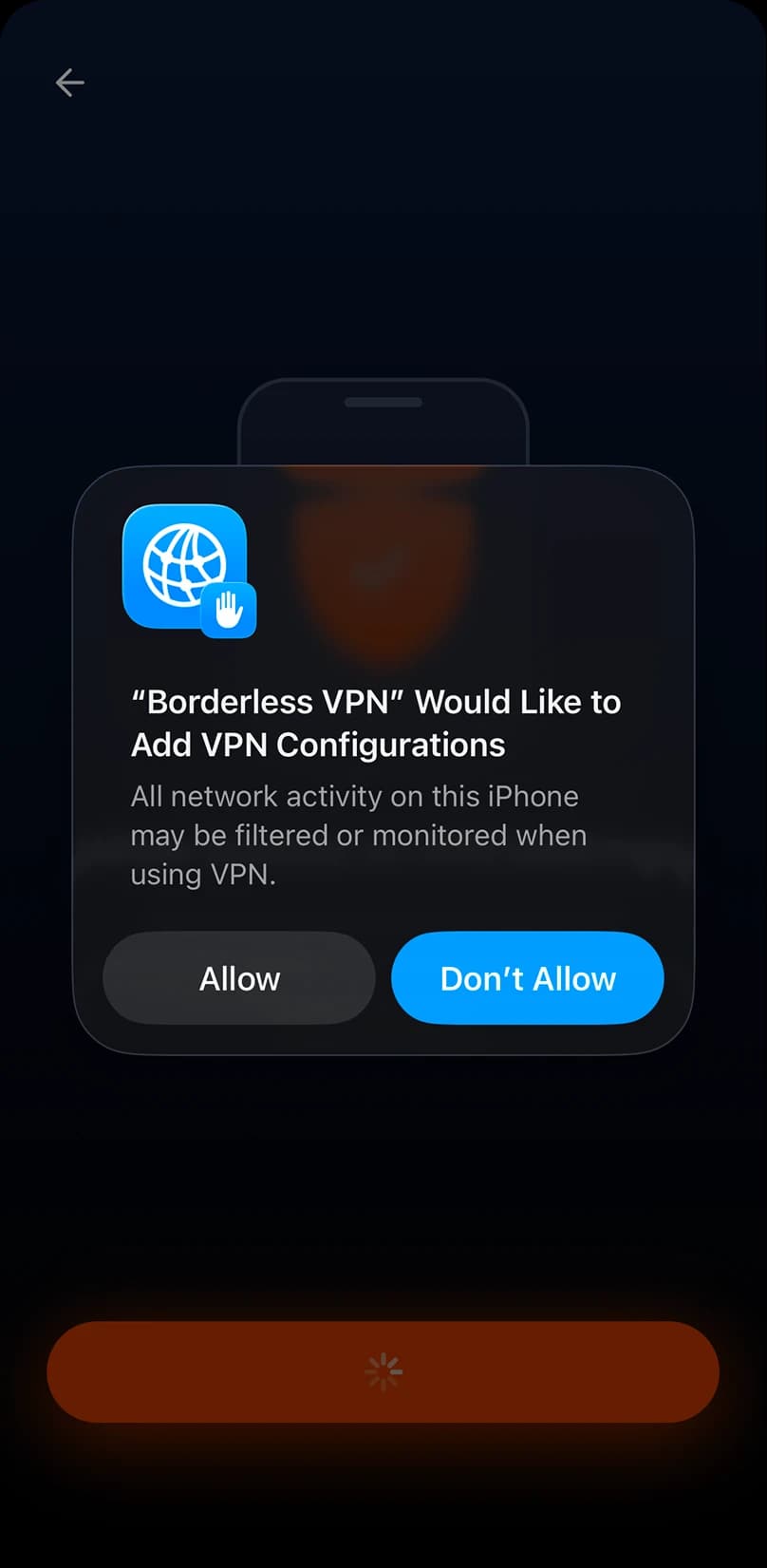
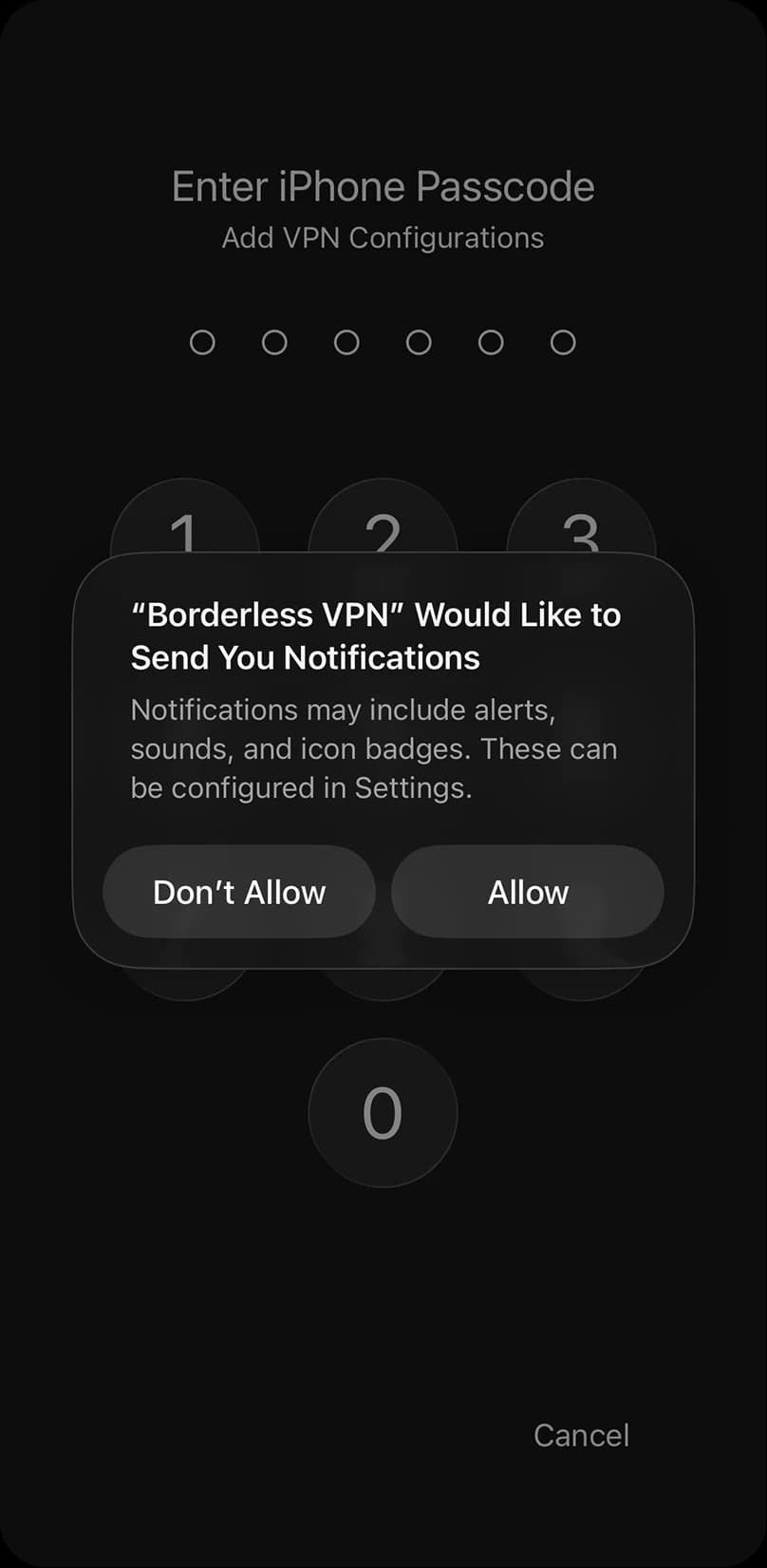
Allow VPN Configuration
When prompted to add a VPN configuration, tap Allow. You may be asked to authenticate using your iPhone passcode, Face ID, or Touch ID. This permission is required to establish a VPN connection on your device.
- 5
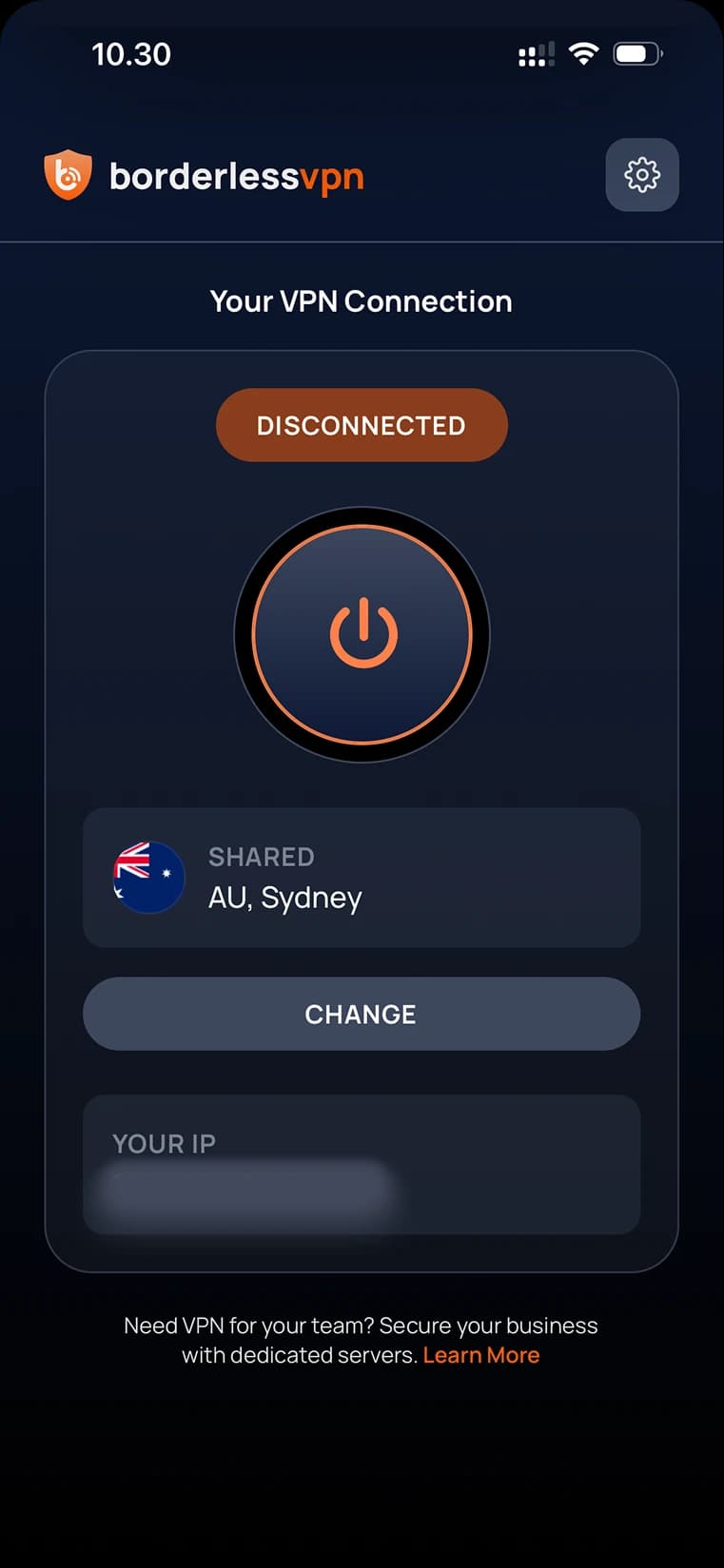
Select a Server
After signing in, select the server you want to connect to. Tap Connect to start the VPN connection.
- 6
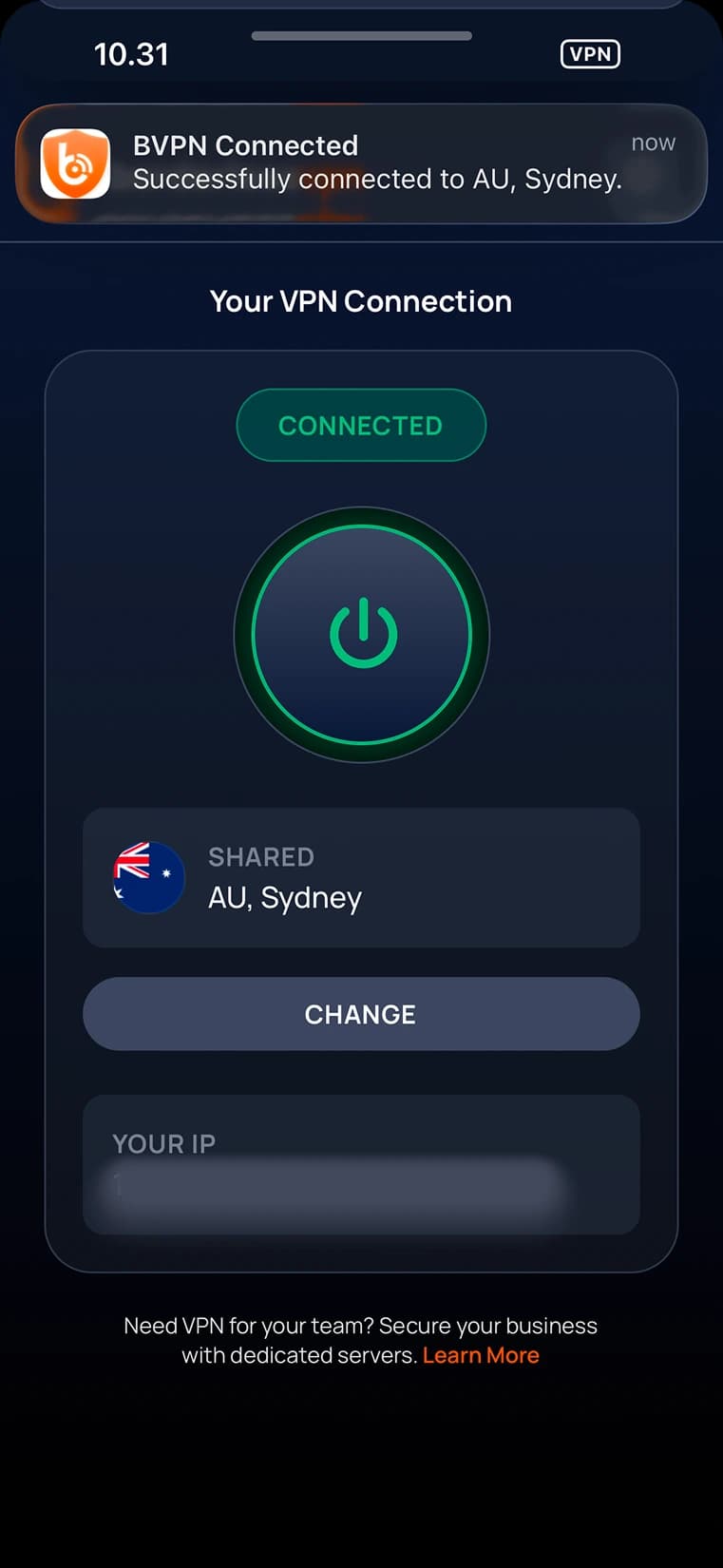
You’re Connected
Your iPhone or iPad is now connected to BorderlessVPN. You can check the VPN status from the BorderlessVPN app or your device’s VPN settings.